 Docs
DocsRun the production workflow
Move a paid order through artwork review, scheduling, printing, quality control, packing and shipping on one job record.
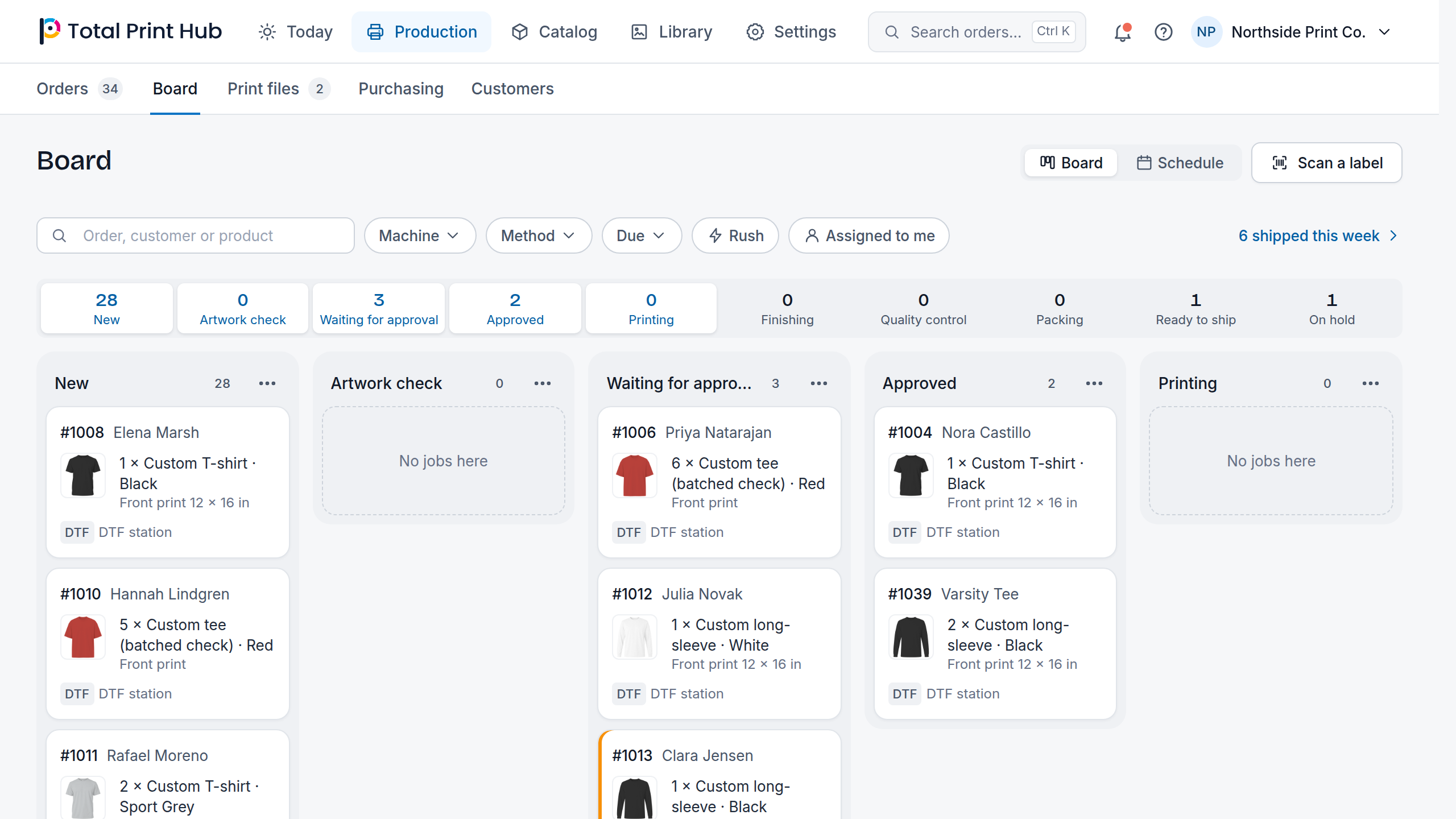
How a job enters the queue
Each paid order line with a design, from your Shopify or WooCommerce store, creates one production job. If the store sends the same order again, the same job is reused and never duplicated. If a paid line is not in the queue yet, open its order in Production > Orders and choose Add to production queue.
- Ticket and store order
- Product, variant, SKU, quantity, method, design and print files
- Priority, due date, operator, work center, notes and current stage
Configure the floor once
- 1
Open Settings > Production setup and review the prepared stages and the moves allowed between them.
- 2
Keep only the stages your shop uses.
- 3
Create your work centers in Settings > Production setup, each with a code, time zone, print methods and daily capacity.
- 4
Add each printer to its work center with its methods, state and capacity.
- 5
Use Production > Board to find overdue, unassigned, full and overbooked work before you promise a date.
Prepare artwork, proof, and materials
- 1
Open the job and review the design, source files, fonts, file checks, proof and owner package.
- 2
Record the artwork approval or the changes you asked for. Earlier history is kept.
- 3
Review the materials the job needs and any shortage in Settings > Production setup.
- 4
Reserve the stock for the approved job.
- 5
The reserved stock is used once when the job is handed to print; repeating the action never deducts it twice.
Use labels and scans safely
Print a job label only when you need a barcode or QR label on the floor. Printing a new label for a job makes the old printout stop working at once.
- 1
Open the job and open Scan label. Type LABEL to confirm, choose Create scan label, then Print label. The label code is shown once.
- 2
At the work center, choose Scan label in Production > Board, scan the label and choose Find job.
- 3
Review the job, its current stage and the next step allowed.
- 4
Confirm the hand-off to print. A scan never skips a required approval or a move that is not allowed.
- 5
Create a new label if one is lost; never copy a label code into notes or chat.
Finish with traceable exceptions
- Record quality-check passes, failures, holds and exceptions
- Choose Reprint or Remake on the job to create a linked job instead of erasing the original
- Record packing, carrier, service and tracking
- Use Production > Board for queue, due dates, materials, throughput and exceptions
Safe operating rules
- Assign selected changes only the jobs you ticked; a job another operator changed in the meantime is left for you to refresh, not overwritten
- Keep sending work to a supplier separate from your own print hand-off until that supplier connection is set up and tested
- Do not mark a job ready to print while its artwork, proof, product, material or file checks are still blocked
- Never put label codes, supplier passwords, download links or customer files in general notes